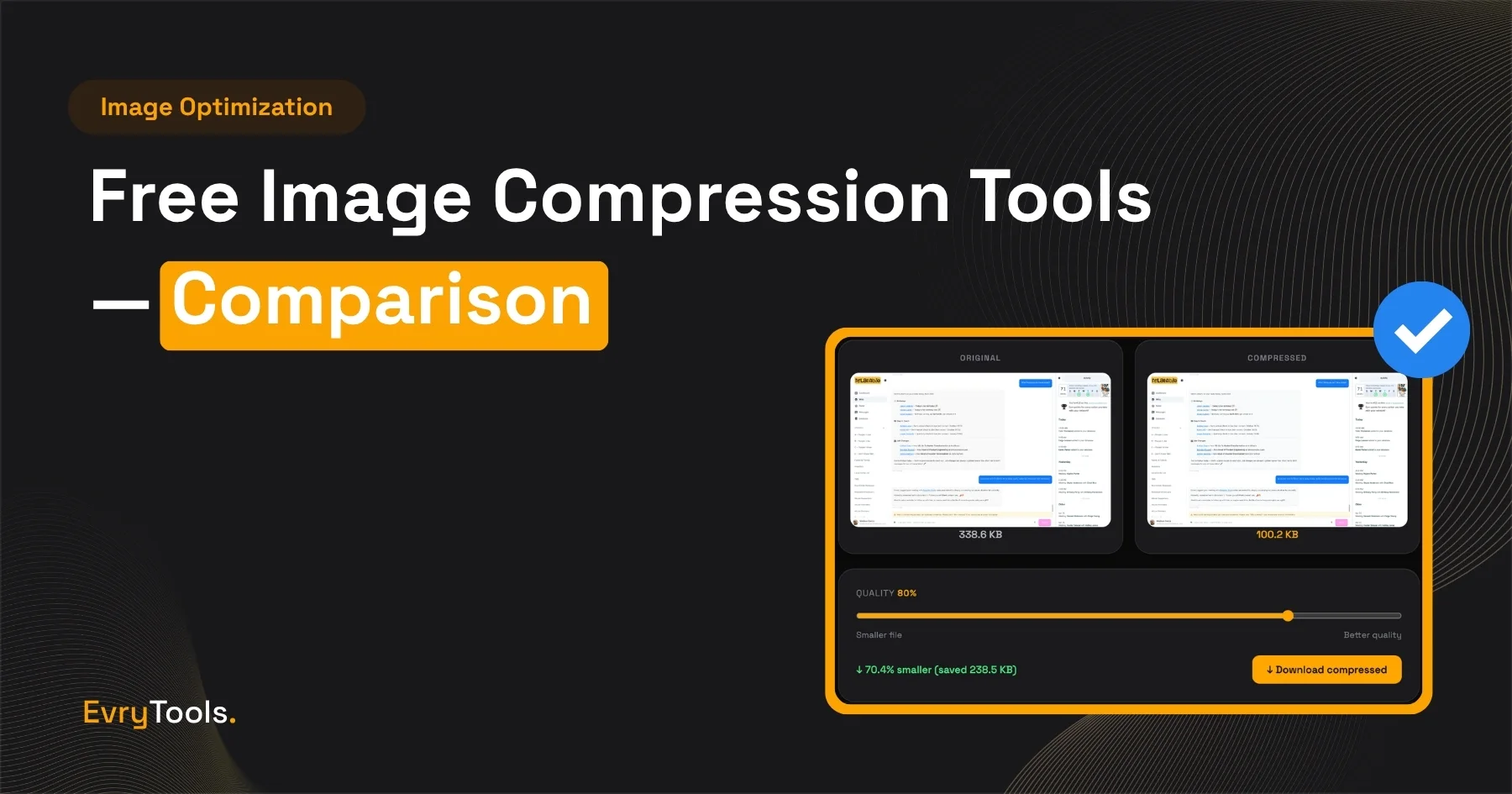
The best free image compressor for most people is EvryTools Image Compressor — no file size limits, no batch caps, nothing uploaded to any server, and a quality slider that gives you control over the output before you download. If you want to know how it stacks up against TinyPNG and Squoosh, this post breaks down exactly where each tool wins and where it falls short.
What “Compress Without Losing Quality” Actually Means
There are two approaches to image compression and it helps to know which one you’re asking for.
Lossless compression reduces file size without discarding any image data. Every pixel is preserved exactly. This is how PNG compression typically works — the output is visually identical to the original at any zoom level.
Lossy compression reduces file size by discarding image data the human eye is unlikely to notice — subtle colour variations, fine grain, redundant pixel data. JPG and WebP use lossy compression. You can control how aggressive the compression is: lower quality settings mean smaller files but more visible degradation past a certain threshold.
“Compress without losing quality” in practice means lossy compression set to a level where degradation isn’t visible at normal viewing size. A good tool lets you find that threshold yourself rather than making the decision for you. One of the key things to look for in an image compressor is a quality slider — so you’re in control, not the tool.
The Three Main Free Options
EvryTools Image Compressor
- URL: evrytools.com/tools/image-compressor
- Privacy: Client-side — nothing leaves your browser
- Limits: No file size limit, no batch limit
- Formats: JPG, PNG, WebP input and output
- Account required: No
EvryTools compresses images entirely in your browser. Your files are never uploaded to a server, which matters more than most people realise — every other upload-based tool sees your image, even briefly. For product photography, client work, or anything proprietary, that’s worth considering carefully.
The quality slider lets you dial in the compression level before downloading, and the tool shows you an estimated output size in real time so you know what you’re getting before committing. There are no limits on how many images you process or how large they are — which makes it practical as a regular part of your workflow rather than a tool you switch away from when it throttles you.
WebP output is supported alongside JPG and PNG. For web images, WebP typically produces meaningfully smaller files at equivalent quality than JPG, and browser support is now universal across Chrome, Firefox, Safari, and Edge.
TinyPNG
- URL: tinypng.com
- Privacy: Server-side — files are uploaded to TinyPNG’s servers
- Limits: 20 images per batch, 5MB per file on the free tier
- Formats: JPG and PNG only (no WebP output on free tier)
- Account required: No (free tier), yes for Pro
TinyPNG has been around for a long time and has a large user base. It works well for small batches of PNGs and JPGs and the interface couldn’t be simpler — drag, drop, download. For users who want zero configuration, that simplicity is genuinely appealing.
The free tier limits are where it starts to break down for regular use. Twenty images per batch and a 5MB file cap means anyone processing a full image library will hit a wall quickly. TinyPNG Pro removes these restrictions for $25/year.
The more significant issue is privacy. TinyPNG uploads your files to their servers for processing. Their policy states files are deleted within 48 hours, but the image leaves your device regardless. For stock photography, proprietary product images, or client assets, that’s a meaningful consideration.
Squoosh
- URL: squoosh.app
- Privacy: Client-side — nothing leaves your browser
- Limits: One image at a time, no file size limit
- Formats: Wide format support including AVIF, WebP, MozJPEG, OxiPNG
- Account required: No
Squoosh is a Google Chrome Labs project and it shows — it’s technically impressive. It supports more output codecs than the other two, including AVIF and MozJPEG. The side-by-side drag slider for comparing before and after is genuinely useful when you’re trying to find the exact quality threshold for a specific image.
The limitation is that it processes one image at a time with no batch capability whatsoever. For a single hero image where you want to optimise carefully, Squoosh is useful. As a regular workflow tool for compressing multiple images, it’s too slow to be practical.
Side-by-Side Comparison
Advertisement
| Factor | EvryTools | TinyPNG | Squoosh |
|---|---|---|---|
| Privacy | Client-side | Server-side upload | Client-side |
| Batch processing | No limit | 20 at a time (free) | One at a time |
| Max file size | No limit | 5MB (free) | No limit |
| WebP output | Yes | No (free tier) | Yes |
| Quality control | Yes (slider) | No | Yes (granular) |
| Account required | No | No | No |
| Cost | Free | Free / $25/year Pro | Free |
Which Tool Is Right for You?
For most people, most of the time, EvryTools is the right choice. It handles any file size, any batch size, keeps your images entirely on your device, gives you quality control, and outputs WebP as well as JPG and PNG. There’s no free tier to outgrow and no paid upgrade to consider.
TinyPNG makes sense if you’re compressing a small handful of images occasionally and want the fastest possible workflow with zero decision-making. Just be aware of the upload, the batch limit, and the file size cap.
Squoosh earns its place for one specific use case: a single image where you want to compare before and after at the pixel level before committing to a setting. It’s not a batch tool and isn’t designed to be.
How to Compress Images With EvryTools — Step by Step
- Go to evrytools.com/tools/image-compressor
- Upload your image — JPG, PNG, or WebP
- Use the quality slider to find the right balance. For most web images, a setting of 75-85 produces significant compression with no visible difference. Below 70, watch for degradation in detailed areas.
- Check the estimated output file size — it updates as you move the slider
- Click Download to save the compressed file to your device
A few practices that improve results regardless of the tool you use:
- Start with the best source image you have. Compressing an already-compressed file accelerates quality loss.
- Match format to content. JPG for photographs, PNG for graphics with flat colours or transparency, WebP for web images where you want the best file size.
- Check at 100% zoom before finalising. Compression artefacts are often invisible at 50% zoom but clear at full scale.
- Use WebP for web images. It consistently produces smaller files than JPG at equivalent visual quality, and there are no meaningful browser compatibility issues in 2026.
Final Thoughts
Image compression doesn’t need to be complicated. EvryTools Image Compressor handles the job without limits, without uploading your files anywhere, and without an account. The quality slider means you’re always in control of the output.
It’s free. Start there.
Frequently Asked Questions
Advertisement
Does compressing an image damage the original file?
No. EvryTools produces a new compressed file as a separate download. Your original is never modified or overwritten.
Does EvryTools upload my images to a server?
No. The entire compression process runs in your browser. Your images never leave your device and are never transmitted to any server. This is what separates EvryTools from tools like TinyPNG, which process files server-side.
Is WebP better than JPG for web images?
Generally yes. WebP produces smaller files at equivalent visual quality for most image types, and all modern browsers support it. The main exception is email clients, where JPG and PNG remain the safer choice.
What quality level should I use?
For most web images, 75-85 is the right range — significant compression with no visible quality loss at normal viewing sizes. For detailed photography or anything you’ll print, stay closer to 85. For thumbnails or background images, 70-75 is usually fine.
Does EvryTools have a file size or batch limit?
No. There’s no stated file size limit and no cap on how many images you can compress. Everything runs locally in your browser, so the only practical constraint is your device’s available memory for very large files.