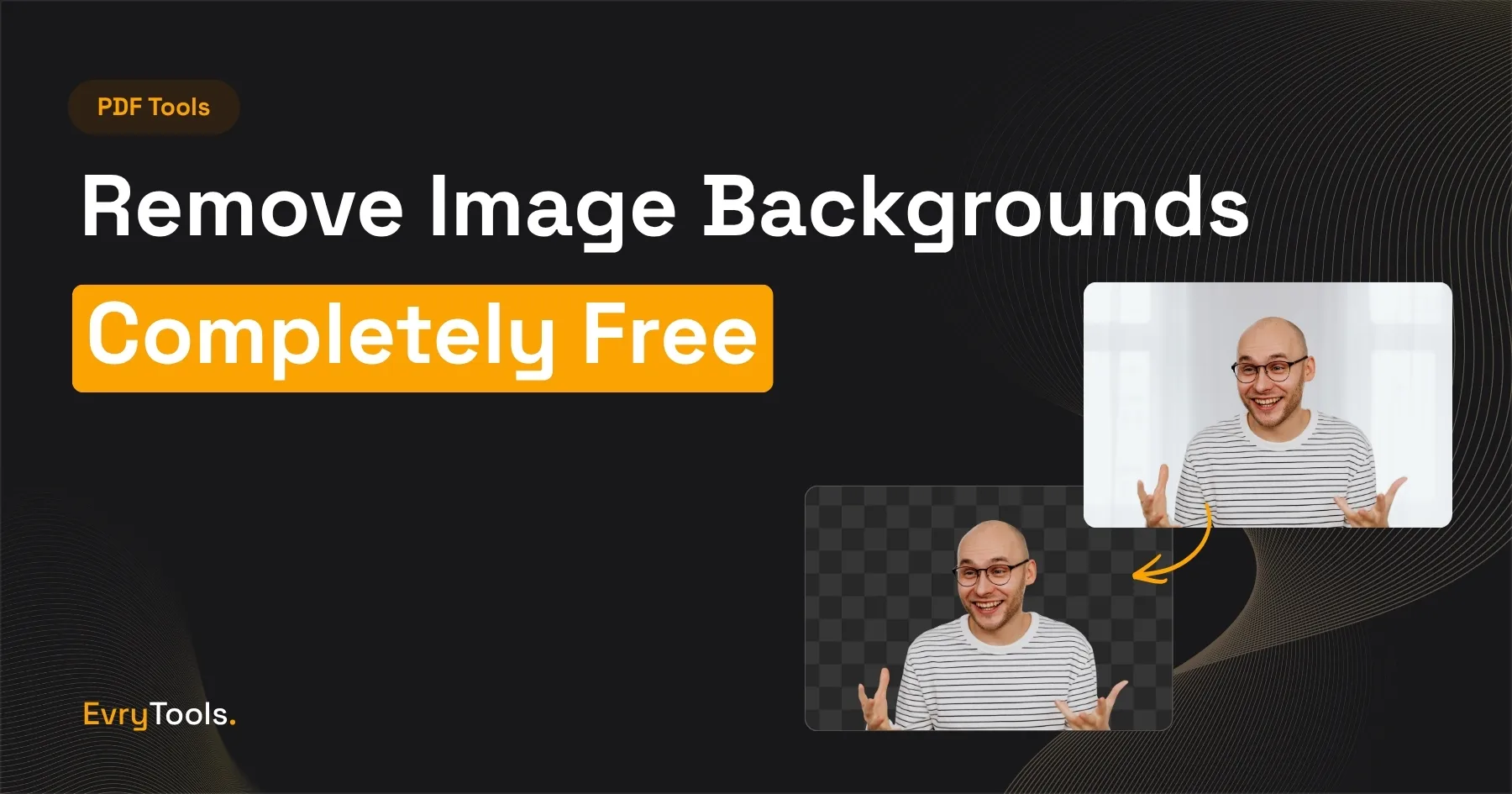
You can remove an image background for free using the EvryTools Background Remover — full resolution output, no watermark, no account required, and nothing uploaded to any server. The whole process takes a few seconds.
The Problem With Most Background Removers
Advertisement
Remove.bg is the tool most people find first when they search for background removal. It works well — but the free tier downloads a heavily downscaled preview at 0.25 megapixels. Getting the full-resolution image costs credits, which start at around $9 for 40 images. For professional use, that adds up quickly.
Canva includes background removal in Canva Pro at $15/month. Adobe Express has it behind a paid plan too. The free tools that do exist tend to either watermark the output, limit resolution, or upload your images to their servers.
EvryTools removes backgrounds at full resolution, for free, with no watermark, and without sending your image anywhere. That last point matters for product photography, client headshots, or any image with commercial or confidential value.
How to Remove a Background — Step by Step
- Go to evrytools.com/tools/background-remover
- Click Upload Image or drag your image onto the tool
- Wait a few seconds while the background is detected and removed
- Preview the result — the transparent areas show as a checkerboard pattern
- Click Download to save your image as a PNG with a transparent background
The downloaded file is a PNG. PNG is the correct format for transparent backgrounds — JPG doesn’t support transparency, so always use PNG when working with cut-out images.
What the Tool Works Best On
Background removal works by detecting the subject of an image and separating it from the background. The quality of the result depends largely on the contrast between the subject and background, and how complex the edges are.
Works very well:
- Product photography on simple or plain backgrounds
- Headshots and portraits with reasonable contrast between subject and background
- Logos and graphics on solid colour backgrounds
- Animals and objects with clear, defined edges
Works reasonably well:
- Subjects on busy backgrounds where there’s clear colour contrast
- Hair and fine edges — modern AI-based removal handles these far better than older tools, though very fine hair detail can still be challenging
Works less well:
- Subjects that are visually similar in colour to the background (a person in a white shirt against a white wall, for example)
- Heavily blurred backgrounds where the boundary between subject and background is unclear
- Very complex scenes with multiple interlocking subjects
For the use cases that work well — product photography, headshots, logos — the output is clean and professional.
What to Do With a Transparent Background Image
Once you have a PNG with a transparent background, a few common applications:
Place on a new background — import the PNG into Canva, Figma, Photoshop, or any image editor and place it over a colour, gradient, or new scene.
Use on a website — a product image with a transparent background sits cleanly on any page background colour without a white box around it.
Add to a document or presentation — transparent PNGs drop into Word, PowerPoint, Google Slides, and Keynote without the white rectangle that solid-background images create.
Create consistent product images — if you’re selling products online, removing backgrounds and placing subjects on a consistent white or grey background creates a professional, uniform look across your catalogue.
Use for email signatures — a headshot with a transparent background works cleanly in email signature templates regardless of the signature’s background colour.
Background Remover vs Manual Masking in Photoshop
Advertisement
For complex, high-stakes images — a product launch hero shot, a brand campaign visual — manual masking in Photoshop will always produce better results than an automated tool. A skilled retoucher can handle edge cases that AI-based removal struggles with.
For everyday use — product thumbnails, team page headshots, presentation visuals, social media assets — automated removal at this quality level produces results that are good enough for professional use in a fraction of the time.
The EvryTools background remover is the right tool when you need a clean result quickly, at no cost. It’s not a replacement for professional retouching when that level of quality is genuinely required.
Related Tools on EvryTools
Once you have a clean PNG with a transparent background, you might also need to:
- Resize it — EvryTools Image Resizer lets you set exact pixel dimensions
- Convert the format — EvryTools Image Format Converter if you need WebP or another format
- Compress it — EvryTools Image Compressor to reduce file size before uploading to a website
- Add padding — EvryTools Image Padding Adder if you need a specific canvas size with whitespace around the subject
All of these run in the browser. None of them require an account.
Final Thoughts
Background removal used to require Photoshop skills or a paid subscription. EvryTools Background Remover does it in seconds, at full resolution, with no watermark, and without sending your image to any server.
For product photography, headshots, logos, and everyday image work, it handles everything you need — free, private, and with no account required.
Frequently Asked Questions
Is the EvryTools Background Remover completely free?
Yes. Full-resolution downloads are free with no account, no credits system, and no watermark on the output.
Does my image get uploaded to a server?
No. The background removal runs entirely in your browser. Your image is never transmitted to any server, stored, or seen by anyone else. This is what separates EvryTools from tools like Remove.bg, which process images on their own servers.
What file formats does the tool accept?
The background remover accepts JPG and PNG files. The output is always a PNG, since PNG is the only common web format that supports transparent backgrounds.
Why is my output a PNG and not a JPG?
JPG doesn’t support transparency — it fills any transparent area with white. PNG preserves the transparent background, which is what you need to place the image on different backgrounds or use it in design software. Always use PNG for images with transparency.
The edges look slightly rough — can I fix this?
For most use cases, the automated output is clean enough to use directly. If you need pixel-perfect edges on a specific image — particularly for fine hair detail or complex boundaries — you’ll get better results with manual refinement in an image editor like Photoshop or Affinity Photo, using the automated result as a starting point.
Can I use this tool on mobile?
Yes. The tool works in any modern mobile browser. Upload from your camera roll and download directly to your device.