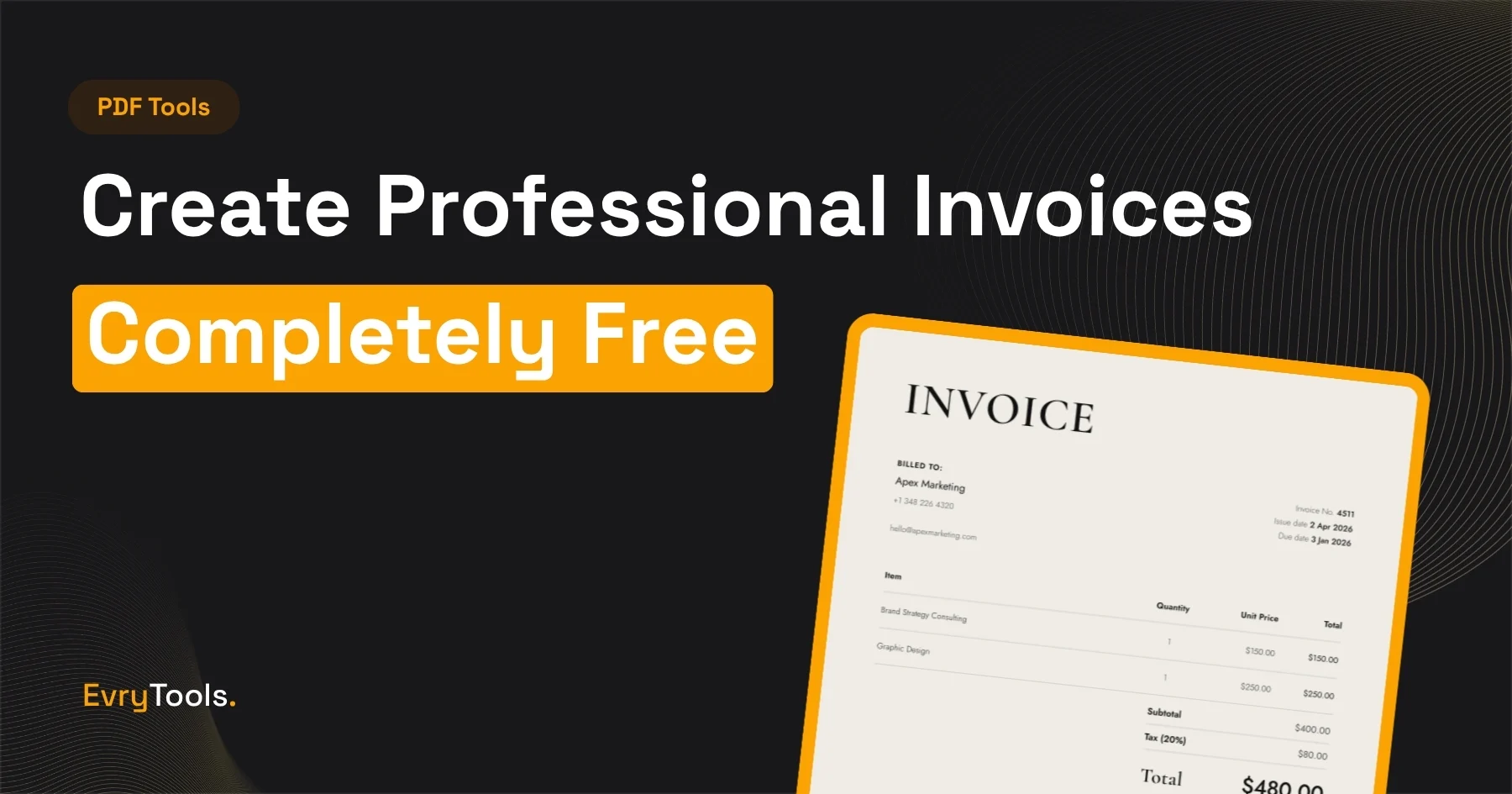
You can create and download a professional invoice in under three minutes using EvryTools Invoice Generator — no account, no signup, and nothing stored on any server. This post walks you through the whole process and explains what most “free invoice” guides don’t tell you about the tools they recommend.
Why Most Free Invoice Guides Are Misleading
Search “free invoice generator” and the top results will recommend Wave, PayPal Invoicing, FreshBooks, or Zoho Invoice. All of them require you to create an account before you can do anything. Most of them are free for basic use but push you toward paid plans as your business grows.
Wave is genuinely free for invoicing, but your data lives on their servers, you need an account, and you’re locked into their ecosystem. PayPal Invoicing is free but ties everything to a PayPal account and takes a percentage if clients pay through the platform.
If you just need to generate a well-designed PDF invoice and send it — without handing over your email address or agreeing to terms of service — those tools don’t serve you. EvryTools does.
What the EvryTools Invoice Generator Includes
The Invoice Generator is a fully browser-based tool with three professional design styles to choose from:
- Studio — clean, modern, well-suited to creative freelancers and agencies
- Serif — elegant and traditional, works well for consultants and professional services
- Clean — minimal and versatile, appropriate for any industry
Every style includes space for:
- Your business name, logo, and contact details
- Client name and billing address
- Invoice number, issue date, and due date
- Unlimited line items with quantity, unit price, and description
- Subtotal, tax rate, and total calculation (automatic)
- Payment instructions or notes
- Custom currency
The output is a well-formatted PDF that looks like something produced by a design professional, not a web form.
How to Create a Professional Invoice — Step by Step
The whole process takes under three minutes once you have your information ready.
- Go to evrytools.com/tools/invoice-generator
- Choose your preferred design style — Studio, Serif, or Clean
- Enter your business name, address, email, and phone number
- Upload your logo if you have one (optional — the invoice looks good without it)
- Enter your client’s name and billing address
- Set the invoice number, issue date, and due date
- Add your line items — each one has a description, quantity, and unit price
- Set your tax rate if applicable (the total updates automatically)
- Add any payment instructions in the notes field — bank details, preferred payment method, late fee policy
- Click Download PDF
Your invoice downloads immediately. No processing delay, no email confirmation, no account dashboard to navigate. The file is ready to attach to an email or share via any platform you use.
What Information to Include on Every Invoice
Advertisement
A professional invoice should include a specific set of fields to be legally clear and easy to process. Missing any of these can delay payment.
Essential fields:
- Your full legal name or business name
- Your address and contact information
- The client’s full legal name or business name
- The client’s billing address
- A unique invoice number (e.g. INV-001, INV-2026-03)
- Issue date and payment due date
- An itemised list of services or goods with quantities and rates
- Subtotal, any applicable taxes, and the final total
- Payment method and instructions
Optional but useful:
- Your VAT or tax registration number (required in some jurisdictions)
- A late fee policy
- Project reference or purchase order number
- Currency (if you work with international clients)
The EvryTools Invoice Generator covers all of these. The notes field is where you’d add payment method details, bank transfer information, or any project reference numbers.
Choosing the Right Invoice Design
The design style you choose affects how clients perceive your business. Here’s how to think about it.
Studio works best for creative professionals — designers, photographers, videographers, web developers, and agencies. It has a contemporary feel that signals design literacy.
Serif suits professional services — consultants, lawyers, accountants, coaches, and anyone where authority and credibility matter more than creative flair. It reads as established and traditional.
Clean is the safe choice for anyone who isn’t sure — it’s minimal enough to fit any industry and readable enough that nothing feels out of place.
All three styles use the same layout and include the same fields. The difference is purely aesthetic. If you send multiple document types (proposals, invoices, NDAs), choosing the same style across all of them creates a consistent branded experience for clients.
Setting Invoice Numbers Correctly
Invoice numbers exist for your records and your client’s accounts department. The format doesn’t matter as long as it’s unique and sequential.
Common formats:
- Sequential: INV-001, INV-002, INV-003
- Year-prefixed: INV-2026-001 (restarts each year)
- Client-prefixed: ACME-001 (one sequence per client)
Pick a format and stick to it. Most accounting software and accounts payable teams use invoice numbers to match payments — inconsistent numbering creates unnecessary back-and-forth.
What to Put in the Notes Field
The notes field is where most freelancers undersell themselves. A clear, specific notes section reduces payment delays significantly.
Good notes include:
- Payment method details: “Please pay by bank transfer to [account details]” or “Payment accepted via PayPal at [email]”
- Due date reminder: “Payment is due within 14 days of the invoice date”
- Late payment policy: “Invoices unpaid after 30 days are subject to a 2% monthly interest charge”
- Project context: “This invoice covers work completed for [project name] as per our agreement dated [date]”
You don’t need all of these. But including your payment method and a clear due date is the minimum that separates professional invoices from ones that get lost in an inbox.
How to Send Your Invoice
Advertisement
Once you’ve downloaded the PDF, you have several options:
- Email it directly as an attachment — this is the most common approach for freelancers
- Share via Google Drive or Dropbox and send the link — useful if you want to track whether it’s been opened
- Upload it to a client portal if your client uses one
- Print and post it for clients who prefer physical invoices (less common but occasionally required)
EvryTools doesn’t send the invoice for you — it generates the PDF. Sending is up to you, which means you’re not tied to any platform’s payment processing fees.
What EvryTools Doesn’t Do (And When You Might Need More)
EvryTools generates the invoice document. It doesn’t:
- Track whether the invoice has been opened or paid
- Send automated payment reminders
- Handle recurring invoices
- Process payments directly
If you invoice 20+ clients a month, track overdue payments closely, or need automated reminders, a dedicated invoicing platform like Wave (free with account) or FreshBooks ($17/month) makes more sense.
For freelancers who send a handful of invoices a month and want zero friction — no account, no subscription, no platform dependency — EvryTools is the better choice.
100% private — nothing leaves your browser. Client details, business information, and invoice content are never uploaded or stored anywhere.
Final Thoughts
Creating a professional invoice shouldn’t require signing up for a platform, agreeing to terms of service, or learning a new dashboard. EvryTools Invoice Generator gets you from blank to downloaded PDF in under three minutes, with three design styles that look as good as anything produced by tools costing $20/month.
It’s free, it requires no account, and your data stays on your device.
Frequently Asked Questions
Is the EvryTools Invoice Generator really free?
Yes, completely. There is no paid plan, no signup required, and no limit on how many invoices you can create. The tool is free for everyone.
Does EvryTools store my invoice data?
No. Everything runs in your browser — your business details, client information, and line items are never sent to a server or stored anywhere. When you close the tab, nothing is retained.
Can I use my own logo on the invoice?
Yes. The invoice generator includes an optional logo upload field. Your logo will appear on the downloaded PDF. Supported formats include JPG and PNG.
What’s the difference between the Studio, Serif, and Clean invoice styles?
All three styles include identical fields and functionality. Studio has a modern, design-forward aesthetic. Serif has a traditional, professional feel. Clean is minimal and works for any industry. The choice is purely cosmetic — pick the one that best matches how you want clients to perceive your business.
Can I edit an invoice after downloading it?
The downloaded file is a PDF, so it’s not directly editable without a PDF editor. If you need to make changes, go back to the invoice generator, update your details, and download a new version. The tool doesn’t save your previous work, so keep the original details handy if you think you’ll need to revise.
Does EvryTools support multiple currencies?
Yes. You can set any currency symbol in the invoice generator. It doesn’t perform live currency conversion — you enter the amount in your chosen currency and the symbol displays accordingly.