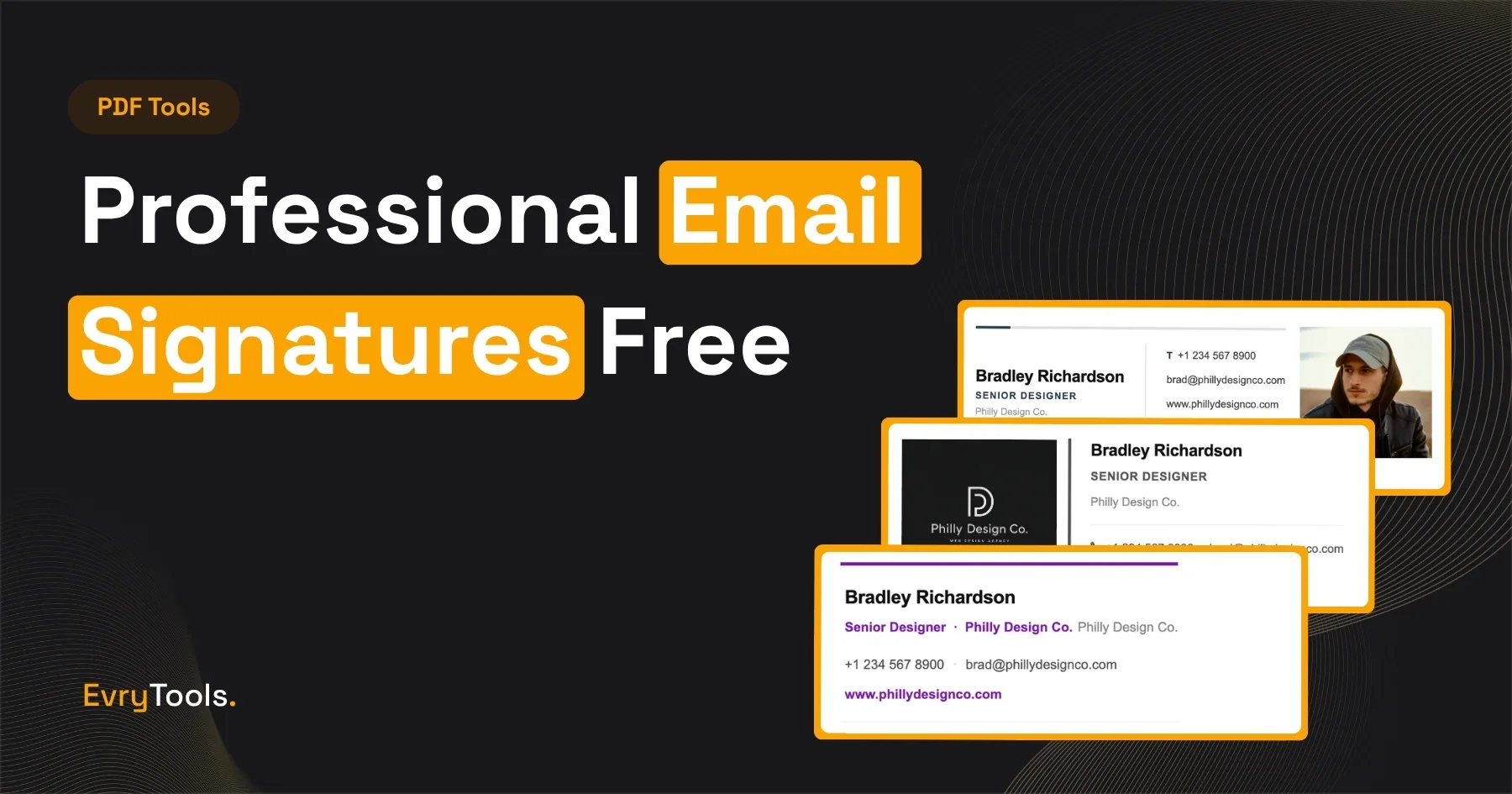
You can create a professional email signature for free using the EvryTools Email Signature Generator — 6 premium templates, full customisation, and a clean HTML output you can paste directly into Gmail, Outlook, or Apple Mail. No account, no Wisestamp subscription, no watermark on your signature.
Why Most People End Up Paying for This
Email signature generators sit in an awkward market. The free tiers of tools like Wisestamp and Newoldstamp either watermark your signature with their branding or lock the better templates behind a paid plan. Wisestamp charges $6/month ($72/year) for a signature that, frankly, most people could build themselves given a clean tool to work with.
The EvryTools generator gives you 6 properly designed templates at no cost. The output is standard HTML that works anywhere. There is no “EvryTools” footer added to your signature, and there is no paid plan to unlock.
What Makes an Email Signature Professional
Advertisement
A professional email signature does one thing well: it gives the recipient enough information to know who you are and how to reach you, without visual clutter.
The elements that actually belong in a signature:
- Your full name — first and last
- Job title and company name — or your freelance trading name
- Primary contact method — usually phone or the email they already have
- Website URL — your portfolio, company site, or LinkedIn
- Headshot or company logo — optional, but effective when done well
What doesn’t belong: motivational quotes, legal disclaimers longer than two lines, animated GIFs, every social media platform you’ve ever created an account on, and your full postal address unless your industry requires it.
The templates in EvryTools are designed around this principle — they include the fields that matter and leave out the ones that don’t.
The 6 Email Signature Templates — Which One to Choose
The EvryTools Email Signature Generator includes 6 templates. Each one has a different visual style suited to different professional contexts.
Classic — a clean horizontal layout with name, title, and contact details in a single row. Works for any industry. Safe if you’re unsure.
Modern — a two-column layout with your headshot or logo on the left and contact details on the right. Slightly more visually structured than Classic. Works well for client-facing roles.
Minimal — name, title, and one or two contact lines. Nothing else. Best for senior professionals, lawyers, executives, or anyone where restraint signals authority.
Bold — uses a colour accent bar and stronger typographic hierarchy. Well-suited to creative professionals, agencies, and anyone in a visual industry.
Corporate — a more formal layout with company logo prominence. Suited to larger organisations or anyone representing a company rather than themselves personally.
Creative — the most visually distinctive of the six, with flexible layout options. Best for designers, photographers, and brand-led freelancers.
When in doubt: Classic or Modern cover the vast majority of professional contexts and look appropriate regardless of industry.
How to Create Your Email Signature — Step by Step
The whole process takes about three minutes.
- Go to evrytools.com/tools/email-signature-generator
- Choose your template from the six options
- Enter your full name, job title, and company name
- Add your phone number, website URL, and any social links you want included
- Upload a headshot or company logo if your chosen template supports it
- Adjust the accent colour to match your brand if desired
- Preview the signature — it updates in real time as you type
- Click Copy HTML or Download
The output is a block of HTML code. The next section covers how to install it in the most common email clients.
How to Install Your Email Signature
Gmail
- Open Gmail and go to Settings (the gear icon, top right)
- Click See all settings
- Scroll to the Signature section
- Click Create new, give it a name, and click Create
- In the signature editor, click the Insert HTML icon (it looks like
<>) — if you don’t see it, click the three dots at the bottom of the toolbar - Paste your HTML code and click OK
- Set your new signature as the default for new emails and replies
- Scroll to the bottom and click Save Changes
Outlook (Desktop)
- Open Outlook and go to File > Options > Mail > Signatures
- Click New, name your signature, and click OK
- In the signature editor, click the HTML source button or paste directly — for best results, open a new email, switch to HTML view, paste the code, copy the rendered result, and paste it into the signature editor
- Set as default and click OK
The cleanest method in Outlook is to paste the HTML into a new email in HTML mode, copy the rendered signature, and then paste that into the Outlook signature editor. This avoids any formatting issues from the signature editor’s own HTML parser.
Apple Mail
- Open Mail and go to Mail > Settings > Signatures
- Select your account, click the + button to create a new signature
- Uncheck Always match my default message font if it’s checked
- Open the HTML file in a browser, select all the rendered content, copy it, and paste into the Apple Mail signature field
- Close Settings — changes save automatically
What to Include in Your Social Links
Advertisement
Most email signature templates include fields for social media links. The right ones to include depend on your industry.
Always worth including if active:
- LinkedIn — appropriate for virtually every professional context
- Your personal or company website
Include if it’s professionally relevant:
- Twitter/X — for journalists, marketers, developers with active public profiles
- GitHub — for developers and engineers
- Dribbble or Behance — for designers and creatives
- Instagram — for photographers, stylists, and visual professionals
Leave out:
- Facebook — rarely appropriate in a professional signature
- TikTok — unless it’s a core part of your professional brand
- Platforms you haven’t posted on in over six months
A row of six social icons where three of them link to dormant accounts creates a worse impression than two active ones.
Keeping Signatures Consistent Across Your Business
If you’re a freelancer who sends proposals, invoices, and NDAs alongside your emails, visual consistency across all your documents matters. The Studio, Serif, and Clean design styles in EvryTools’ document suite (invoice generator, NDA generator, proposal generator) can be matched to the signature template that feels closest in aesthetic — creating a consistent brand impression across every touchpoint a client sees.
This is something tools like Wisestamp don’t offer — they generate signatures in isolation, with no connection to your broader document design.
Final Thoughts
A professional email signature takes three minutes to create and makes every email you send look more considered. EvryTools Email Signature Generator gives you 6 properly designed templates with full customisation — for free, with no account, and no branding added to your output.
Unlike Wisestamp at $6/month, there’s nothing to cancel.
Frequently Asked Questions
Is the EvryTools Email Signature Generator completely free?
Yes. All 6 templates are free, there is no paid tier, and no EvryTools branding is added to your signature. No account or signup is required.
Will my signature look the same in every email client?
HTML email signatures render slightly differently across Gmail, Outlook, and Apple Mail due to differences in how each client handles HTML and CSS. The EvryTools templates are built to be broadly compatible. Outlook in particular can be temperamental with complex layouts — the Classic and Minimal templates are the most reliable across all clients.
Can I use a company logo instead of a headshot?
Yes. The image upload field accepts both headshots and logos. PNG format with a transparent background works best for logos.
How do I update my signature later?
Go back to the generator, recreate your signature with the updated details, and reinstall it in your email client. The generator doesn’t save your previous work, so keep a note of your settings or save the HTML output somewhere accessible.
Does EvryTools store my signature or contact details?
No. Everything runs in your browser. Your name, contact details, and any uploaded images are never sent to a server or stored anywhere.